Table of Contents
- Quick Comparison: Top 5 Field Notes Tools for Contractors
- 1. PhotoLog: Best for Photo-First Field Documentation
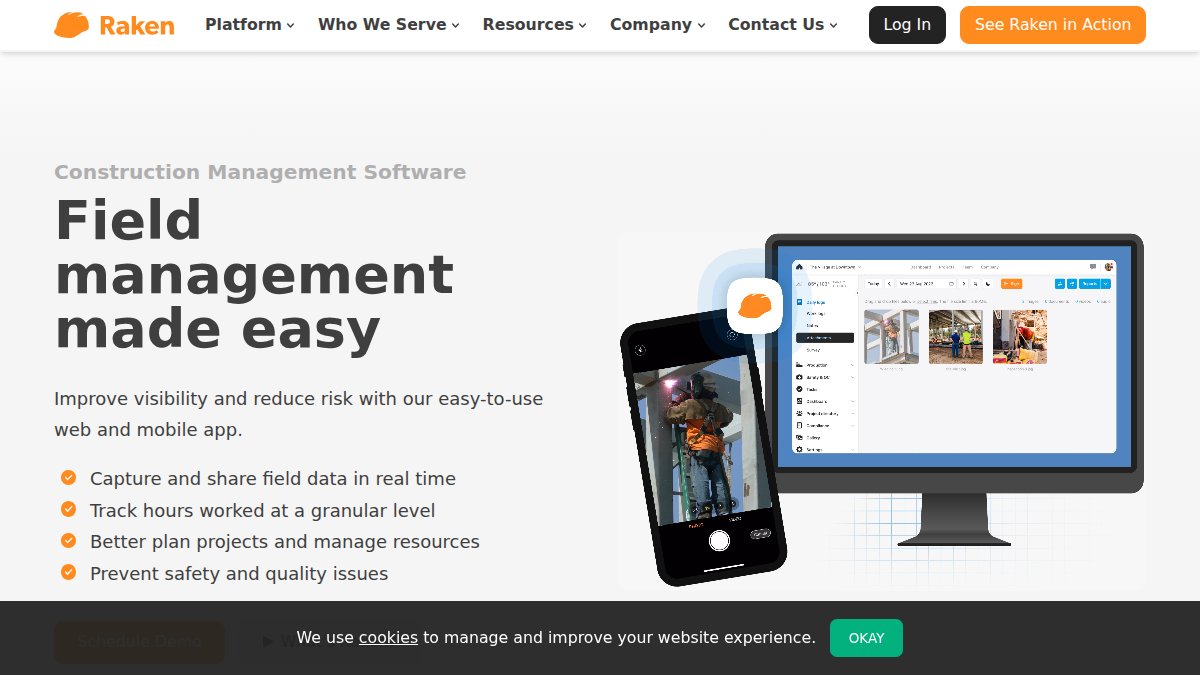
- 2. Raken: Best for Daily Reporting Workflows
- 3. Fieldwire: Best for Plan Management and Task Coordination
- 4. CompanyCam: Best for Visual Progress Tracking
- 5. Jobber: Best for Small Trade Contractors
- Data Privacy for Field Documentation Apps: What Contractors Need to Know
- Construction Field Documentation Best Practices for Crews
- Frequently Asked Questions
Last Updated: September 21, 2026
Quick Comparison: Top 5 Field Notes Tools for Contractors
The best digital field notes tools for contractors in 2026 combine offline reliability, photo documentation, and fast reporting. This guide compares five options built for jobsite conditions, not office desks.

Here’s how the five leading options stack up:
| Tool | Free Tier | Starting Price | Best For | Standout Feature |
|---|---|---|---|---|
| PhotoLog | Yes | Free download | Photo-first documentation | Session keys and formatted field reports |
| Raken | No | Contact for pricing | Daily reporting workflows | Automated daily report generation |
| Fieldwire | Yes | $39/user/month | Plan management and tasks | Real-time plan markup |
| CompanyCam | No | $79/month (3 users) | Visual progress tracking | Unlimited GPS-tagged photo storage |
| Jobber | No | $29/month | Small trade contractors | Built-in CRM and invoicing |
1. PhotoLog: Best for Photo-First Field Documentation
PhotoLog turns an Android device into a professional documentation tool. It automatically geotags and date-stamps every image, so each photo carries verifiable location and time data the moment you capture it.
Key Features
- Automatic GPS geotagging with a switchable privacy control
- Typed and dictated notes attached directly to each image
- Instant searchability by event key or date
- Exportable ZIP files with formatted Field Reports
- Session-based keys that group photos by site visit or event
Pros and Cons
Pros: Session keys keep hundreds of photos organized by visit. Reports export as formatted documents, not loose image folders. GPS can be switched off when privacy matters.
Cons: Android-only. Teams on iOS need a different option.
Create a new session key at the start of every site visit. It takes ten seconds and means you can pull an entire day’s documentation in one search later.
2. Raken: Best for Daily Reporting Workflows
Raken centers on the daily report. Field staff dictate notes by voice, attach photos and video, and the platform assembles a structured report automatically, removing real admin time for general contractors producing daily logs across multiple crews.
Key Features
- Voice-to-text dictation for hands-free note capture
- Automated daily report generation
- Photo and video attachments
- Offline mode for remote job sites
Pros and Cons
Pros: Interface is genuinely intuitive for field staff. Construction-specific workflows, not adapted generic tools.
Cons: Pricing requires a quote.
3. Fieldwire: Best for Plan Management and Task Coordination
Fieldwire handles the coordination layer: blueprints, tasks, and issue tracking. Teams view and mark up plans in real time, attach photos to tasks, and track progress across the site. It is a project management platform with documentation built in, not the other way around.
Key Features
- Real-time plan viewing and markup
- Task management with photo and note attachments
- Offline functionality across the site
- Large touch targets for gloved hands
Pros and Cons
Pros: Offline performance is excellent, and the mobile interface suits field technicians.
Cons:

4. CompanyCam: Best for Visual Progress Tracking
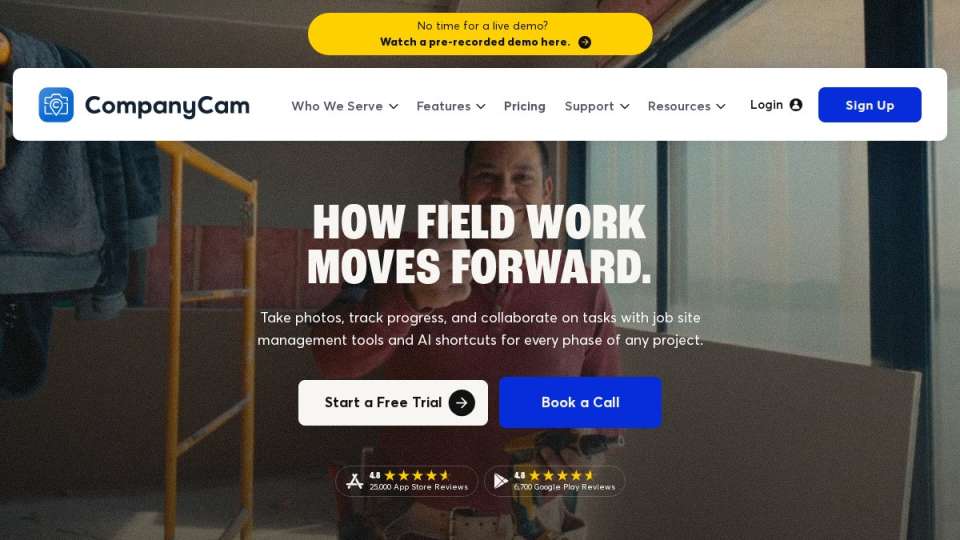
CompanyCam organizes photos, notes, and documents by project location. Every image is GPS-tagged and stored without a cap, and project activity feeds keep the team current, a strong fit if your work depends on showing clients visible progress.
Key Features
- Unlimited GPS-tagged photo storage
- In-app photo annotation and voice notes
- Project-based activity feeds
- Integrations with major CRM and project management software
Pros and Cons
Pros: The visual workflow is simple enough that crews actually use it. Excellent for client updates and accountability.
Cons:
5. Jobber: Best for Small Trade Contractors
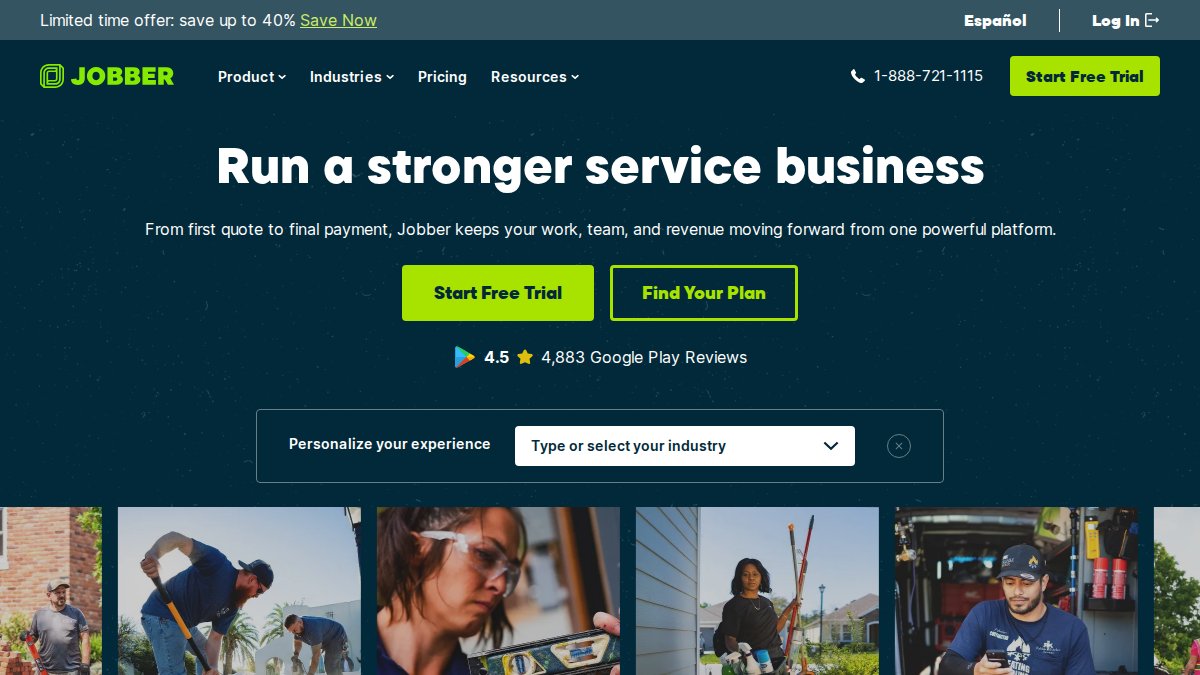
Jobber bundles field notes into a broader business platform. Client history, scheduling, quoting, and invoicing live in one place, and the mobile app handles on-site updates, consolidation that matters more than documentation depth for a small trade business.
Key Features
- CRM with full client note history
- Mobile scheduling and on-site updates
- Automated invoicing and quoting
- Time tracking and expense logging
Pros and Cons
Pros: One system replaces several subscriptions. Mobile app is genuinely capable.
Cons:
Data Privacy for Field Documentation Apps: What Contractors Need to Know
Data privacy for field documentation apps comes down to four questions: where is your data stored, who can access it, can you get it out again, and will it hold up if a dispute goes to court? Under Canada’s Personal Information Protection and Electronic Documents Act, organizations must protect personal information collected in commercial activity.
Where the data actually lives
Most vendors say “the cloud” without naming a region. Ask directly: which country hosts the primary database, and which hosts the backups? A vendor storing primary data in Canadian data centres but replicating backups abroad can still expose records to foreign access requests.
Access controls that match how crews actually work
With shared credentials you cannot prove who captured a photo or note, or revoke access when someone leaves. Look for per-user accounts, role-based permissions (supervisor vs. labourer vs. office), and the ability to remove a departed employee’s access without losing their historical records.
Data ownership and export portability
This is the gap most tool comparisons skip. If your field notes only exist inside one vendor’s platform, you have a licence to view them, not full ownership. Ask three questions before you commit:
- Can I export everything, or only what the vendor chooses to expose? Bulk export of photos, notes, timestamps, and GPS coordinates should be a standard feature.
- What formats? PDF and CSV are the minimum. A ZIP of raw images without metadata is not a real export, the metadata is the evidence.
- What happens if I stop paying? Confirm whether your data is deleted after a grace period, and how long that period is.
Legal admissibility of digital field notes
Digital records are generally admissible in Canadian civil and regulatory proceedings, but their weight depends on showing they were captured reliably and not altered afterward. Three properties matter most:
- Timestamp integrity. The capture time should be recorded by the device or server, not editable by the user after the fact. Apps that let you backdate a note undermine its evidentiary value.
- GPS tagging. Location metadata ties a photo to a specific site and supports claims about where work was performed. A photo without coordinates is much weaker evidence.
- Audit trail. Can you show that a note was edited, by whom, and when? An immutable history is far more defensible than a record that can be silently changed.
Never rely on a single cloud account as your only record. Sync failures, account lockouts, and vendor shutdowns happen. Keep periodic local exports of anything tied to a dispute, a lien, or a compliance filing, and store them somewhere the vendor cannot touch.
A short vendor checklist
- Confirm where the vendor stores primary data and backups, and whether either leaves Canadian jurisdiction
- Verify per-user accounts and role-based access controls
- Test bulk export to PDF and CSV before you commit
- Confirm the retention and deletion policy if you cancel
- Ask whether timestamps and GPS coordinates are user-editable
- Confirm whether an edit history is preserved for each note and photo
Portability and admissibility deserve as much weight as capture quality. A tool that takes beautiful photos but locks them in a proprietary silo is a liability.
Construction Field Documentation Best Practices for Crews
Construction field documentation best practices start with consistency, but consistency only holds up when the tool and workflow survive a jobsite with no signal. A photo without a date, location, and note is just a picture; documented evidence needs all three, captured the same way whether the crew is downtown or twenty kilometres past the last cell tower.
Build the workflow around dead zones, not around Wi-Fi
Most field note apps assume connectivity; real jobsites do not cooperate. The rule is: capture locally, sync when you can. Every note, photo, and voice memo should be written to the device first and uploaded in the background when a connection returns. An app that refuses to save until it reaches the server will fail on the days you need it most.
A few habits that make offline-first work:
- Open the app and load the project before you leave the truck. Cached plans, client lists, and prior notes should be available offline. If the app needs a live connection just to open a project, it is not offline-capable.
- Capture in the same order every visit. Wide shots first, then close-ups of defects or progress points, then a closing wide shot. This makes later review fast and makes missing coverage obvious.
- Add the note while you are still standing in front of the work. Context fades within minutes. A voice memo is faster than typing with gloves on.
- Watch the sync indicator before you leave site. If items are still queued, do not close the app or wipe the device. Most lost-field-note stories start with a queued upload and a phone that got reset.
- Reconcile at the end of the day, not the end of the week. A five-minute review catches duplicate sessions, missing photos, and mislabelled projects before they compound.
Train for time-to-value, not for feature coverage
Most listicles assume crews will read a manual. They will not. The realistic model is a fifteen-minute walkthrough on the device the worker already carries, followed by one supervised site visit. Anything requiring a classroom session or a desktop login will not stick.
What actually drives adoption:
- One job per person at first. Assign a single task, for example, “capture the pre-pour photos and add a voice note”, rather than training the whole app.
- A champion on each crew. One worker who is comfortable with the tool and can answer questions on site is worth more than any help documentation.
- Visible payoff in week one. If the crew sees the office stop calling them for missing photos, they will keep using it. If the only visible change is extra work, they will quietly revert to paper.
Standardize the fields, not just the format
Standardized digital site inspection report templates help, but only if fields are consistent across projects and crews. When every inspector captures the same fields in the same order, location, trade, defect type, severity, action required, reports become comparable and defensible in a dispute. Free-text-only notes are searchable in theory and useless in practice.
Keep a local export discipline
Cloud sync is not a backup. Once a month, export the projects that matter, anything tied to a change order, delay claim, safety incident, or lien, and store the export somewhere the vendor cannot reach.
Frequently Asked Questions
What features should contractors look for in field notes tools?
Prioritize offline mode with reliable data synchronization, GPS tagging, timestamping, and voice-to-text dictation. Look for photo and document attachment workflows, integration with project management software, and a mobile-first design that works for field technicians wearing gloves. Data export portability matters too. If you cannot pull your own records out in a standard format, you do not really own them.
Are digital field notes legally admissible for construction disputes?
Digital records can support dispute resolution when they carry reliable metadata. GPS tagging, automatic timestamping, and an unbroken audit trail strengthen the credibility of your documentation. Cloud-based tools that log every edit and preserve original files make it easier to show a record has not been altered. Consult your legal advisor about retention requirements specific to your contracts and jurisdiction.
How does geotagging and time-stamping benefit field reports?
Geotagging and timestamping create a verifiable record of where and when work happened. That matters for delay documentation, compliance tracking, and safety protocols. When a client questions whether a defect existed before or after your crew arrived, a geotagged photo with a precise timestamp answers it immediately. It also speeds up report generation because the data is already attached to every image.
How do digital field notes improve project documentation compliance?
They replace scattered paper forms and camera rolls with a searchable, centralized record. Automated daily reports, digital checklists with mandatory photo fields, and consistent reporting templates keep every jobsite on the same documentation standard. That consistency reduces gaps that auditors and clients flag. It also cuts the administrative time spent chasing missing paperwork from field technicians after the fact.
Can field notes tools work offline on remote job sites?
Offline-first apps store photos, notes, and form data locally on your device, then sync to the cloud when connectivity returns. This prevents data loss in areas with spotty cell service. The quality of the synchronization engine matters more than the offline mode itself. Test how a tool handles conflicts when two crew members edit the same record offline before committing your team to it.
Documentation discipline is what separates a contractor who wins disputes from one who absorbs the cost. PhotoLog was built for exactly this: automatic GPS geotagging, typed and dictated notes, session-based keys that keep jobsite photos organized, and exportable ZIP files with formatted Field Reports. Download PhotoLog free and turn your Android device into a field documentation tool your records can depend on.