Table of Contents
- Why Offline Field Documentation for Construction Beats Paper Logs
- Construction Site Data Collection Tools: What to Evaluate Before You Buy
- Digital Construction Inspection Forms and Safety Documentation
- Construction Photo Documentation Best Practices for Remote Sites
- Syncing Data, Version Control, and Troubleshooting Conflicts
- Data Security and Encryption During Offline Storage
- Conclusion: Building an Offline-First Documentation Workflow
- Frequently Asked Questions
Last Updated: September 11, 2026
Why Offline Field Documentation for Construction Beats Paper Logs
Paper logs fail when you need them most: a soaked notebook, a smudged sketch, a photo buried in a camera roll weeks after a pour. PhotoLog transforms your Android device into a professional-grade field documentation tool, designed to make capturing and organizing visual data effortless. It was built around one truth: connectivity on a job site is a luxury, not a baseline.
Offline field documentation captures photos, notes, forms, and measurements locally, then syncs when a signal returns. Roughly a third of a typical project timeline involves dead zones, basements, tunnels, and remote sites, conditions paper survives and some cloud-first apps may struggle with.
The payoff is straightforward. Digital capture with automatic GPS geotagging and date stamping creates a searchable record, while paper creates a filing cabinet nobody opens. Canadian occupational health and safety legislation across most provinces requires employers to maintain records of inspections and hazard assessments, and CCOHS guidance on health and safety records notes that these records must be retained and produced on request. A folder of timestamped, geotagged photos answers that requirement far faster than a stack of forms.
Below: what to evaluate in construction site data collection tools, how to run digital construction inspection forms without internet, and how to fix sync conflicts.
Construction Site Data Collection Tools: What to Evaluate Before You Buy
The best construction site data collection tool keeps working when your signal drops to zero. Buyers over-index on cloud dashboards and under-index on local storage behavior. A dashboard you cannot reach from a basement is decoration.
Offline Mode and Local Storage
Offline mode is an architecture decision, not a checkbox. A true offline-first app writes every photo, note, and form entry to local storage first, then queues the upload. A cloud-first app with a “cached” mode may risk data loss if the OS clears its cache or the app crashes.
Ask three questions before you commit:
- Does the app store full-resolution images locally, or only thumbnails?
- What happens to queued uploads if the device restarts mid-sync?
- Can you export a complete record from the device itself, without any network connection?
That last point highlights a key difference in tools. If your only export path runs through a server, your data is only as reliable as your weakest signal.
Hardware Requirements for Field Work
Offline field work is a hardware problem before it is a software problem. A site documentation device needs enough onboard storage for a full day of high-resolution photos, a battery that survives a ten-hour shift in cold weather, and a screen readable in direct sun. Lithium batteries lose capacity in sub-zero temperatures, which matters on winter pours and northern surveys.
Practical minimums for a field device:
- 128 GB of internal storage, with automatic offload to a laptop or drive at day’s end
- A ruggedized case rated for drops onto concrete
- Spare power bank rated for at least two full charges
- Screen brightness of 800 nits or higher for outdoor visibility
Do not rely on expandable microSD storage alone. Card corruption on construction sites is common, and a corrupted card takes the whole day’s documentation with it. Use internal storage as primary and treat the card as a backup only.
Digital Construction Inspection Forms and Safety Documentation
Digital construction inspection forms replace paper checklists with structured, timestamped entries that sync once you are back in range. The form is half the value; the other half is the attached evidence and audit trail proving the inspection happened when and where the record claims.
What a Field-Ready Digital Form Actually Contains
A form that works offline is a structured data object, not a PDF with fillable boxes, the structure makes it searchable and defensible later. A practical site inspection form carries:
- Header fields, project number, site address, inspection type, inspector name, and a session key that groups every entry from one visit
- Conditional logic, selecting “deficiency found” opens the corrective-action fields; selecting “pass” closes them, so the form does not ask irrelevant questions in the field
- Required evidence, a minimum of one photo per deficiency, with the option to attach a second wide-context shot
- Severity and status, open, in progress, closed, with a severity flag that routes high-risk items to a supervisor on sync
- Signature capture, a supervisor or trade representative signs on the device screen, and the signature is bound to the form version and timestamp
- Reference fields, drawing number, specification section, or permit condition the inspection relates to
That last field turns a pile of inspection records into something you can hand to an owner, consultant, or regulator without a week of sorting.
Mapping Forms to Record-Keeping Duties
Occupational health and safety legislation across most provinces requires employers to maintain records of inspections, hazard assessments, and incident investigations, and to produce them on request. Retention periods and required contents vary by jurisdiction, so build forms that capture more than the minimum and store them in a format you can export without the app. Align each digital form with the paper version a jurisdiction already accepts, then add what paper cannot carry: GPS coordinates, automatic timestamps, and photo evidence, a superset of the paper record, not a replacement a reviewer has to interpret.
CCOHS guidance on health and safety records is a reasonable starting reference for what records must be kept and for how long, but always confirm against the specific provincial or territorial regulator that governs the project.
Managing Field Observations Without Internet
Field observations are the raw material of quality control. A defect spotted at 9:15 a.m. on the third floor needs a location, a time, and a photo before anyone forgets it. The workflow that holds up:
- Open the app and start a session keyed to the site and date
- Select the inspection form type, which loads the correct field set and conditional logic
- Capture the observation with a photo, typed or dictated note
- Let automatic GPS geotagging and time stamping attach to the entry
- Mark the item as open, and flag severity
- Attach the drawing or specification reference
- Continue working; the app queues everything locally
- Sync when you reach Wi-Fi or a strong signal
The session-key approach matters: grouping every photo and form entry from a visit under one key makes retrieval take seconds instead of scrolling hundreds of images, and makes the sync unit predictable, one session, one batch, one conflict surface.
Safety Documentation That Survives a Review
Safety forms, toolbox talks, hazard assessments, daily inspections, incident reports, are the records most likely requested after an event and most often found incomplete. Three habits keep them defensible:
- Capture attendance and signatures on the device, not on a clipboard that gets transcribed later. Transcription is where names get misspelled and dates get rounded.
- Attach a photo of the condition the assessment refers to. A hazard assessment with a photo of the actual hazard can provide stronger evidence than one with a description alone.
- Close the loop offline. If a hazard is corrected on site, record the correction in the same session, with a follow-up photo. The record then shows the full cycle, not just the finding.
Dictate your observation notes rather than typing them. On a site with gloves on and wind noise around you, a ten-second voice note can capture more detail than two minutes of thumb-typing, and the note stays attached to the image and the form entry.
Do not let a form auto-close on sync. A deficiency marked “open” that silently becomes “closed” because the sync overwrote a status field is the kind of error that surfaces in a dispute months later. Confirm that status changes are explicit and logged.
Construction Photo Documentation Best Practices for Remote Sites
Good construction photo documentation best practices come down to consistency: same angles, same naming logic, same time of day where possible. Inconsistency makes a photo archive useless six months later.
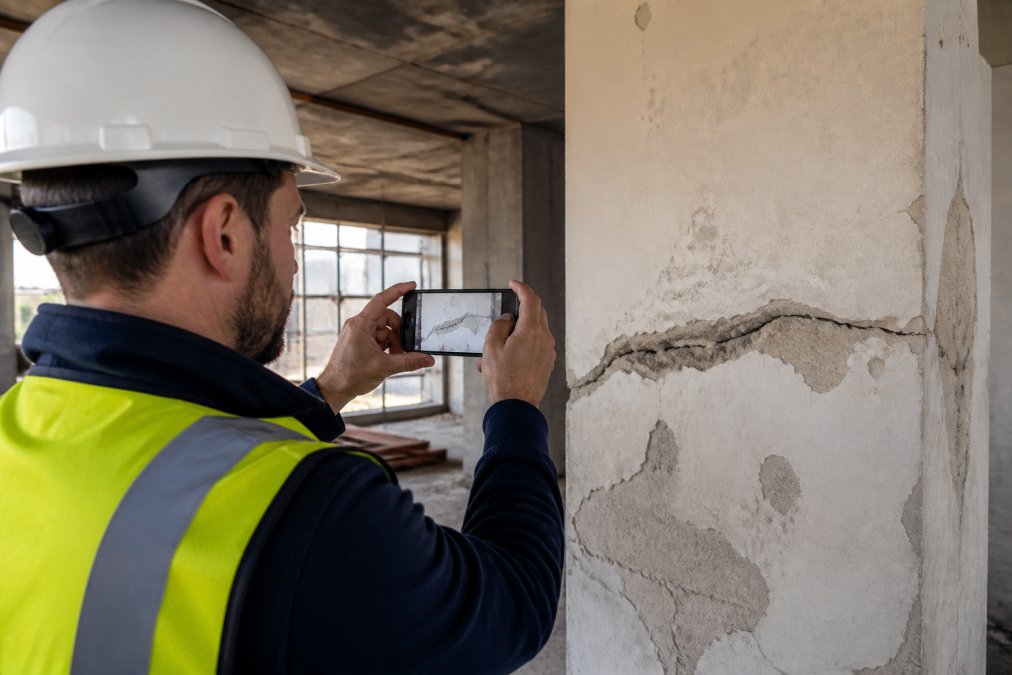
Capture wide shots for context before close-ups for detail. A crack’s significance is often enhanced by knowing which wall, which floor, which elevation. Shoot the room, then the defect, then a scale reference beside the defect.
Handling Large Files: BIM and CAD Drawings
BIM files and CAD drawings are where most mobile documentation strategies collapse: a single federated BIM model can run into hundreds of megabytes, and full drawing sets are larger. The workable approach is separation, keep heavy reference files on a laptop or synced cloud folder, and keep the field device for capture. To mark up a drawing on site, work from a flattened, reduced-resolution export rather than the live model; markup on a lightweight PDF is generally fast, while a full BIM file may slow down a mid-range phone. For as-builts, photograph the installed condition and note the drawing reference in the annotation, giving a verifiable link between drawing and what was built without dragging the model onto the device.
Syncing Data, Version Control, and Troubleshooting Conflicts
Sync conflicts are the most common failure point in offline field documentation, and almost nobody explains how to resolve them. A conflict happens when the same record is edited in two places before either change reaches the server; understanding why lets you prevent it.
How Offline Sync Actually Works
Most offline-first apps use one of three sync models, which determines how conflicts are handled:
- Last-write-wins. The most recent timestamp overwrites everything else. Simple, fast, and dangerous, a note typed at 4:55 p.m. on a device with a skewed clock can silently erase a more complete entry from another inspector.
- Record-level merge. Each record (a form, a photo, a note) is versioned independently. Two inspectors editing different records never conflict; two editing the same record do.
- Field-level merge. The app tracks changes at the field level, so one inspector’s photo and another’s note on the same form can both survive. This is the most robust model and the least common, because it requires the app to store change history locally.
Ask which model a tool uses, the answer tells you how much manual conflict resolution you will do at the end of every shift.
Version Control on Forms
Version control in field documentation is not software version control. The goal is not to preserve every draft but to mark superseded entries rather than delete them, so the record shows what changed and when.
A workable pattern is:
- Every form entry carries a version number and a device identifier
- A superseded entry is retained with a status of “superseded” and a link to the entry that replaced it
- Deletion is reserved for genuine errors, and deletions are logged
- The server keeps the authoritative version, and the device reconciles to it on sync
This matters for safety records: if an incident report is edited after the fact, the record should show the edit, not hide it.
Troubleshooting Sync Conflicts
Most conflicts fall into four categories:
| Conflict Type | What Causes It | How to Resolve |
|---|---|---|
| Duplicate entry | Same photo uploaded from two devices | Keep the earliest timestamp, delete the copy |
| Overwritten note | Two inspectors edit one form offline | Merge both notes, flag for supervisor review |
| Stale version | Device syncs an old local copy over newer data | Restore from server version, re-sync device |
| Partial upload | Sync interrupted mid-batch by a crash or dead battery | Re-queue the incomplete batch; verify file integrity before marking complete |
The partial-upload case catches teams out: a sync that dies halfway can leave a form marked uploaded on the device but incomplete on the server. Treat sync as transactional, either the whole batch lands or none of it does, and the device re-queues on the next connection.
Storage, Battery, and Sync Timing
Sync consumes battery, storage, and bandwidth, all limited on a remote site.
- Storage. A full day of high-resolution photos can run into several gigabytes. If the device is near capacity, the app may fail to queue new entries. Offload to a laptop or drive at day’s end, and keep at least 20 percent of internal storage free.
- Battery. A sync of a large batch can draw significant power, especially on a weak signal where the radio works harder. Sync on Wi-Fi where possible, and keep a power bank rated for at least two full charges.
- Timing. Sync at the end of every shift, not the end of every week. A week of queued data is a week of conflicts waiting to happen, and the longer the gap, the harder the merge.
Sync at the end of every shift, on Wi-Fi where available, with the device charged and storage free. The goal is not to sync cleverly, it is to sync often enough that conflicts stay small and resolvable.
A Note on Data Security During Sync
Data is most exposed in transit. Confirm the app encrypts uploads, authenticates the device to the server, and prevents a lost device from pushing a stale or spoofed batch. Device-level encryption protects data at rest; transport encryption protects it in motion. You need both.
Data Security and Encryption During Offline Storage
Offline storage raises a question most teams never ask: what happens if the device is lost or stolen? A phone holding a month of geotagged, timestamped site documentation is a serious liability if it walks off site.
Three controls cover most of the risk:
- Device-level encryption. Modern Android devices encrypt storage by default, but confirm it is enabled and that a strong lock screen is enforced.
- App-level access control. The documentation app should require authentication to open, not just to unlock the phone.
- Remote wipe capability. If the device is managed, ensure IT can wipe it remotely.
Canada’s federal private-sector privacy law, the Personal Information Protection and Electronic Documents Act, sets out obligations for how organizations collect, use, and safeguard personal information, and the Office of the Privacy Commissioner of Canada’s guidance is the reference point for compliance. Site photos frequently capture people, licence plates, and neighbouring property, so treat the archive as personal information, not just project data.
PhotoLog addresses part of this with switchable GPS, letting you turn location capture off where a site or client requires it, while keeping date and time stamping intact.
Conclusion: Building an Offline-First Documentation Workflow
Building a workflow that survives a dead zone, a dropped device, and a sync conflict without losing the record is a key aspect of effective offline field documentation.
PhotoLog was built for exactly that environment. It turns an Android device into a field documentation tool with automatic GPS geotagging, typed and dictated notes, instant searchability by session key or date, and exportable ZIP files containing formatted Field Reports. Switchable GPS gives you control over what location data leaves the site.
Download PhotoLog free and start capturing site records that hold up when the signal does not.
Frequently Asked Questions
How do construction apps handle data synchronization when offline?
Most offline field documentation tools store edits locally on the device, then push them to cloud storage once connectivity returns. A queue holds each change until the app confirms a successful upload. Good tools timestamp every action so the sync order stays accurate, and they flag conflicts (two people editing the same drawing) instead of silently overwriting one version. Test the sync behavior in a dead zone before relying on it for compliance records.
What features should you look for in an offline construction documentation tool?
Prioritize true offline mode with local storage, automatic GPS geotagging, date and time stamping, and typed or dictated notes. Check that it supports digital construction inspection forms, exports formatted reports rather than loose photo folders, and handles large BIM files without crashing. Version control, encryption at rest, and a clear sync-conflict log matter too. Confirm the app works on the Android devices your crew already carries before committing.
How does geotagging improve construction site accountability?
Geotagging attaches coordinates to every photo and form entry, so a defect, safety log, or as-built capture is tied to an exact location on site. That removes the guesswork when a supervisor reviews field observations weeks later, and it supports compliance audits where precise location evidence is required. Switchable GPS lets crews disable tagging for privacy-sensitive areas while keeping it on for regulated inspections.
How can offline documentation improve safety compliance on remote sites?
Remote sites often sit in dead zones, so paper logs get lost or filled in from memory later. An offline-first app lets inspectors complete safety logs and digital construction inspection forms on the spot, with automatic timestamps that hold up during audits. Local storage keeps the record intact until sync, and formatted reports give regulators or clients a clean, verifiable trail without rework.